
In an age where digital streaming services dominate the entertainment landscape, physical media like DVDs may seem like relics of the past. However, for movie enthusiasts, collectors, and those with a trove of cherished DVD titles, the need to digitize and preserve their content remains paramount.
As an open-source video and disc converter freeware, Handbrake wins the hearts of many video, BD, and DVD lovers because of its inclusiveness for packages and plugins. Some may enjoy the optimized power of the Handbrake while many are wondering why the Handbrake is not working to decrypt and rip a protected DVD.
Nevertheless, such incompetence can be solved by installing a libdvdcss plugin into the Handbrake. Check the following content to find more details of libdvdcss and how to install it.
- Part 1: What Is libdvdcss
- Part 2: How to Install libdvdcss
- Part 3: How to Rip DVDs with Handbrake libdvdcss
- Bonus: How to Rip DVDs with Handbrake libdvdcss

Part 1: What Is libdvdcss
libdvdcss is a software library designed to decrypt and access encrypted DVD content.
DVDs often have copy protection mechanisms, such as Content Scramble System (CSS), to prevent unauthorized copying and distribution of their contents.
libdvdcss stands for “Library for accessing DVDs encrypted with CSS” and is commonly used to circumvent these copy protection measures.
What Can We Do With libdvdcss
This software library cannot function on its own. We must install it on an open-source disc ripper or player program like VLC and Handbrake. With the libdvdcss installed on Handbrake, this program becomes eligible to convert protected DVD content.
Part 2: How to Install libdvdcss
To make Handbrake compatible with copy-protected DVDs, let’s see how to install the libdvdcss into the program.
Steps to Install Handbrake libdvdcss on Windows
Step 1
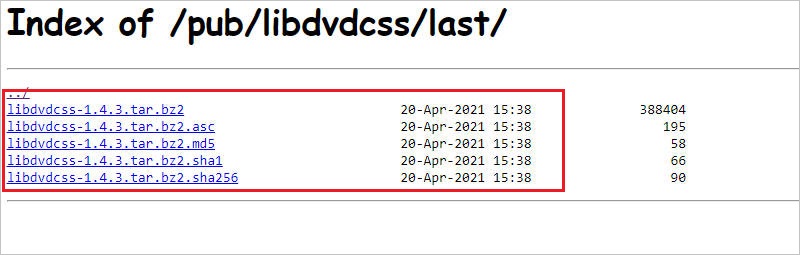
Download libdvdcss from VideoLan. On the page, locate the Get libdvdcss subheading and look down to find “libdvdcss is available through Git or by browsing the releases”. Hit on the release with the hyperlink effect.
Then, locate the latest version and choose to download the bz2 file. Don’t pick other files with different extensions.
Step 2
Next up, find the libdvdcss file – the one with bz2 extension and copy it. Then, go to the Handbrake folder and copy the bz2 file into the folder.

If you don’t know where is the Handbrake folder, you may go to C:// – Program files. There, you may find the Handbrake folder. Or, you’ve chosen a different location to save the Handbrake software, you just need to do a file research on your Windows PC to navigate to it.
Steps to Install Handbrake libdvdcss on Mac
There are two ways of installing the Handbrake libdvdcss on a Mac computer. You can choose to use the Homebrew or just do it manually.
Use Homebrew to Install libdvdcss on Mac Handbrake
Step 1
To begin with, download and install Homebrew on your Mac.
Step 2
Start a new Terminal window and type in “brew install libdvdcss“. Then hit Enter on the keyboard.
Step 3
Next, Homebrew will start to download and install libdvdcss to Handbrake.
Tip: What is Homebrew
This is the third-party package management software for Mac users. With it, you can simplify the installation process on Mac.
Install libdvdcss on Mac Handbrake Manually
To manually install libdvdcss on your Mac Handbrake, you need to download the related file for Mac.
Step 1
Go to the download page and hit macosx/ to download the pkg file.
Step 2
When it’s complete, open a new Terminal window and enter this order:
sudo mkdir /usr/local/lib/sudo cp ~/Downloads/libdvdcss_1.4.2/libdvdcss.2.dylib /usr/local/lib/libdvdcss.2.dylib
Part 3: How to Rip DVDs with Handbrake libdvdcss
Now, Handbrake is capable of decrypting protected DVDs, let’s see how to use it.
Step 1: Load up your DVD in the Handbrake
Pop the protected disk into the drive and launch the Handbrake, locate the disk on the Source Selection list.

Step 2: Set up the profile parameter for the output
Locate Title and choose the exact clip that you want to rip out of the DVD.
Then, on Preset, choose the resolution, frame rate, and ratio that Handbrake offers.
Or you may personalize these properties:
- Summary: Decide format;
- Dimension: Set up new resolution mode and ratio;
- Filters: Choose extra video effects;
- Video: Change codec, frame rate, and quality;
- Audio: Choose an audio channel and encoder;
- Subtitles: Decide the subtitle of the output.

Then, look down and find Save As: to choose the location for the output.
Step 3: Start to rip the DVD
Everything is on set, click Start Encode to initiate a DVD ripping.
When the process is complete, go to the preset folder and check the video.
The above three sections are all the skills and techniques about the installation of libdvdcss and how Handbrake can rip protected DVDs. You can start your ripping right away, or continue your reading to find yourself a much easier way to rip any DVDs.

One-click Blu-ray Converter to Turn Blu-ray disc, Folder, and ISO to Digital Files
*Compatible with Windows 11 & macOS Ventura; Rip BD-25/50/75/100 & BD-ROM/R/RE.
1:1 convert Blu-ray movies to MP4, MKV, AVI, WMV, ISO and other formats fast and easy.

As the leading icon in the DVD/BD ripping and converting industry, Tipard Blu-ray Converter enables you to rip and convert content from all readable disks with or without copy protection.
Supporting dozens of digital formats, you can rip the DVD content into any format you like. Also, depending on the screen for later viewing, you may decide the resolution and ratio as well as file size. Besides, the program also offers you multiple choices of video editing features, like Contrast, Effects, Brightness, Watermarks, etc.
Most importantly, no need to download any plugins or packages and it’s very easy to use.
Conclusion
Handbrake is a great video converter freeware, but it may be least friendly for most regular DVD viewers. Sometimes, a professional DVD ripper or manager program is exactly what you need to solve DVD issues with fewer troubles and operation.